Report Analysis and Interpretation
5.1. Download and Extract Report
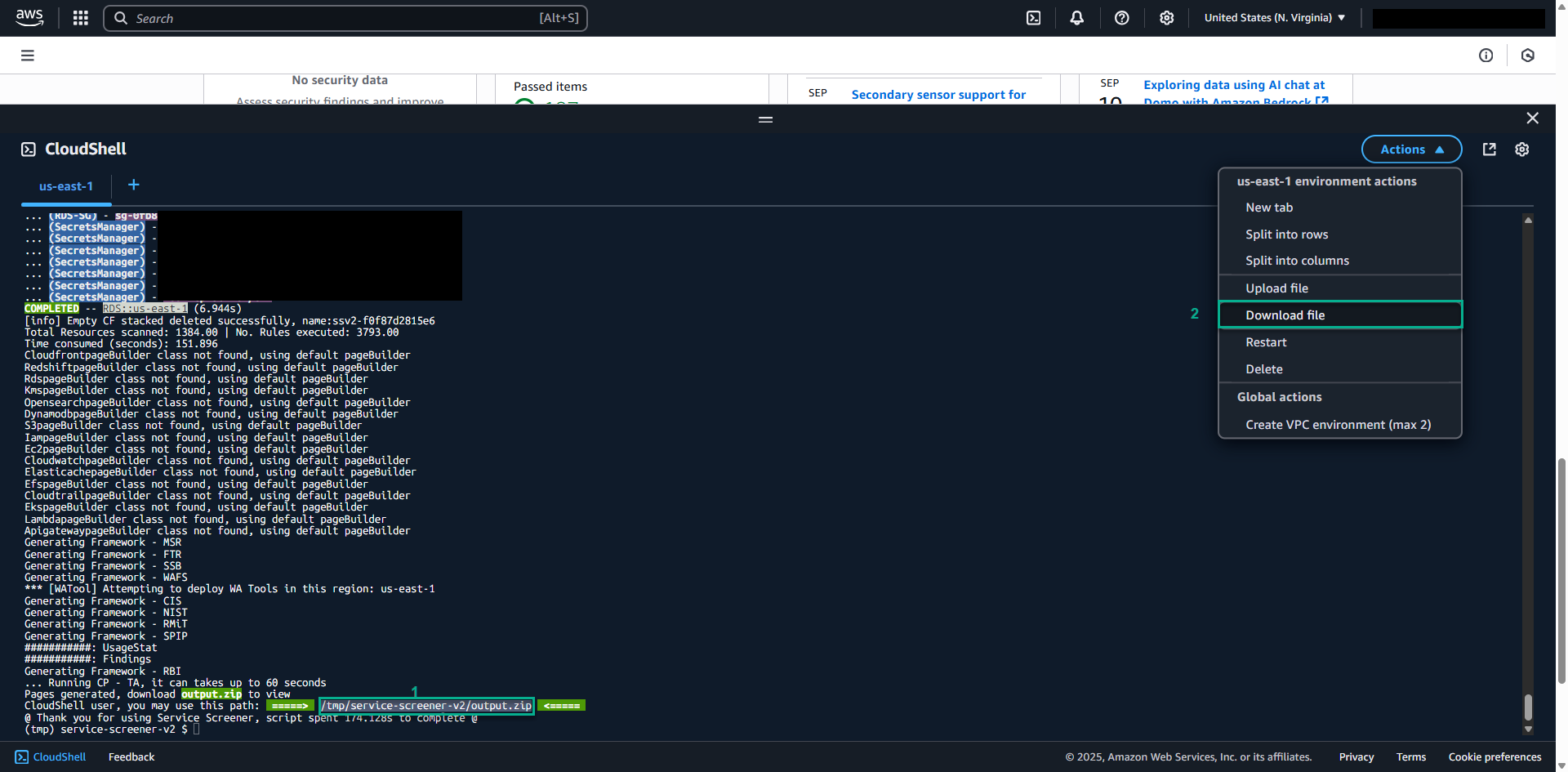
After the scan completes:
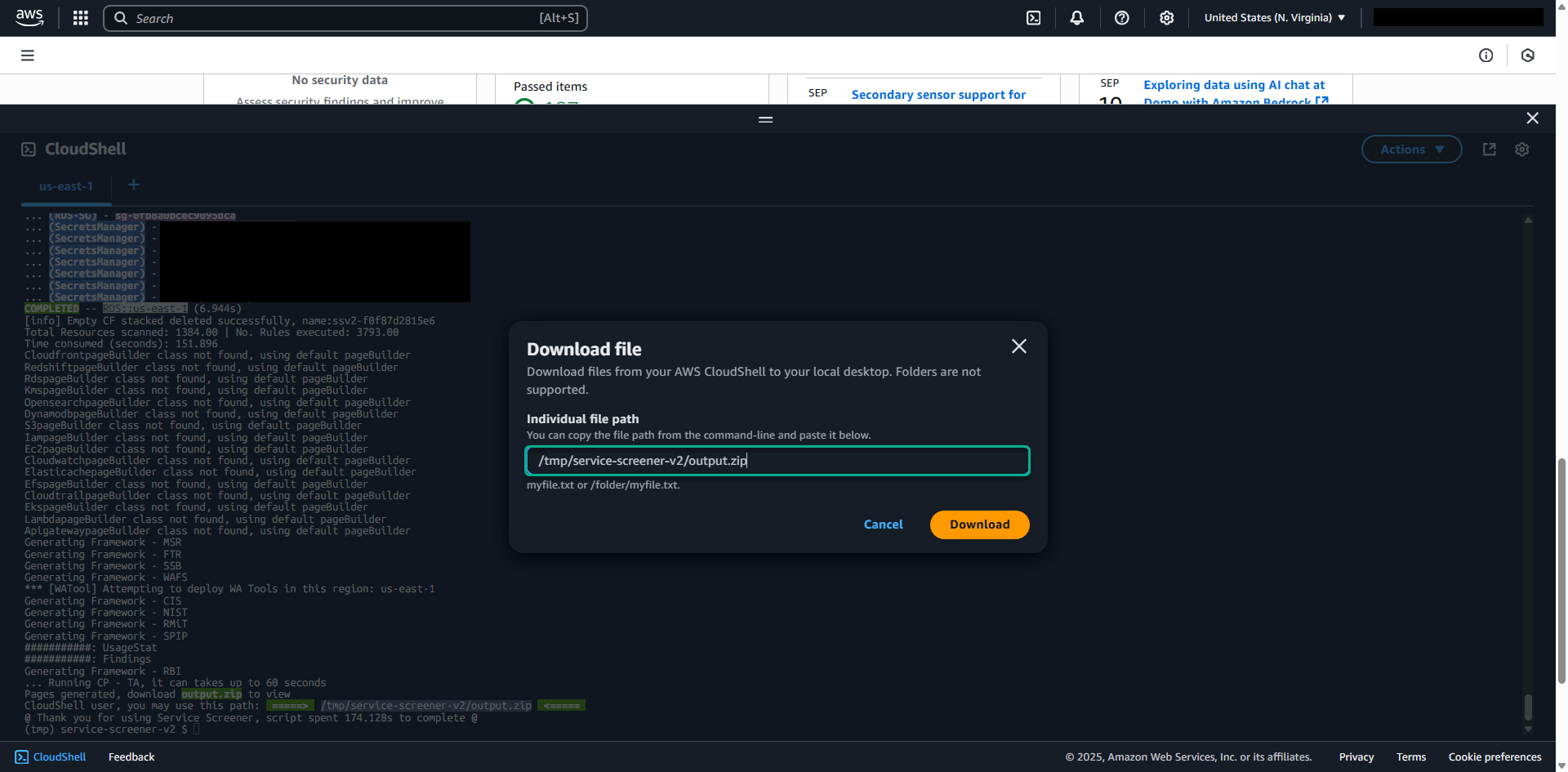
Download the report:
- Click “Download”
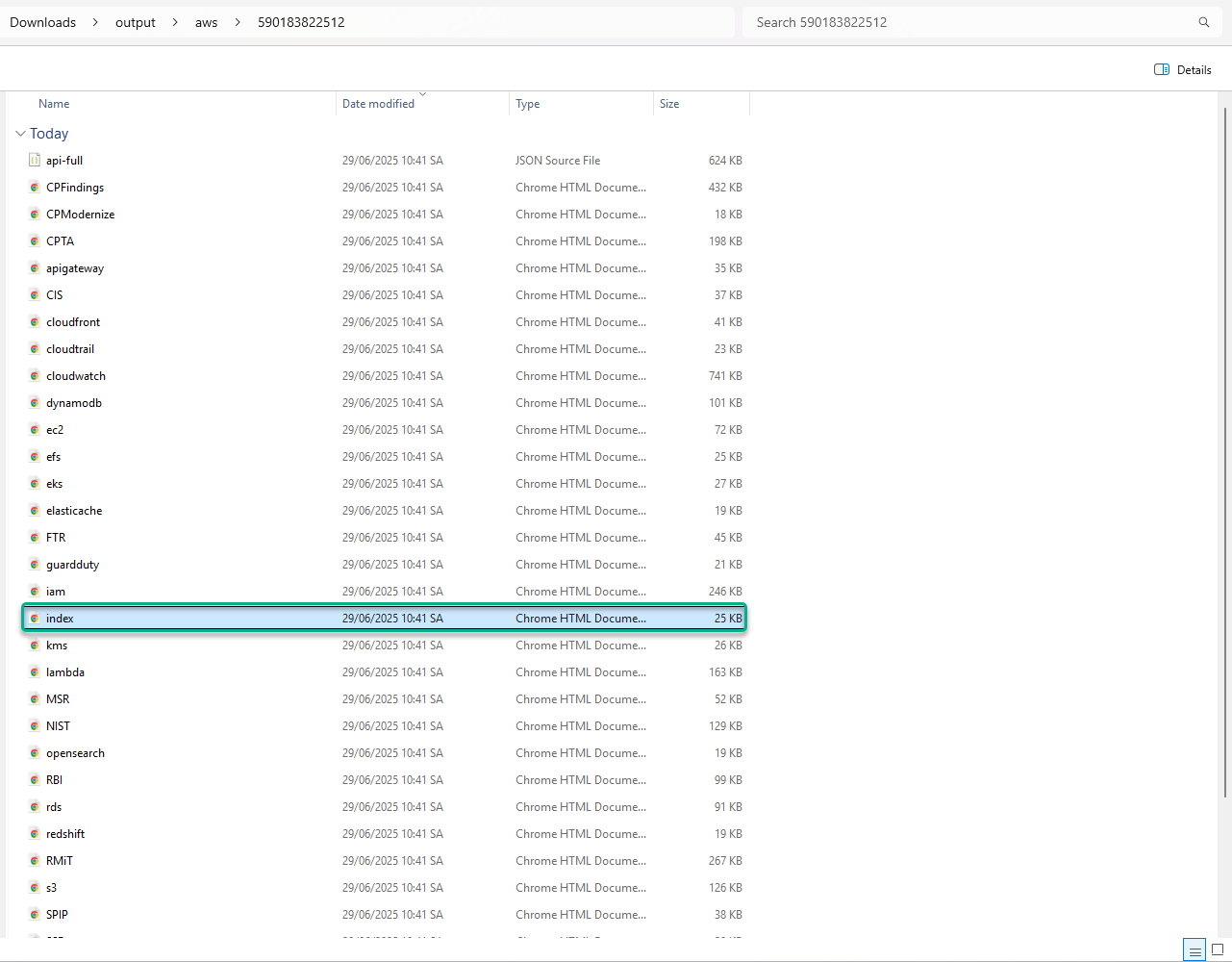
Extract the report:
- Unzip the downloaded file on your local machine
5.2. Navigate the Report Interface
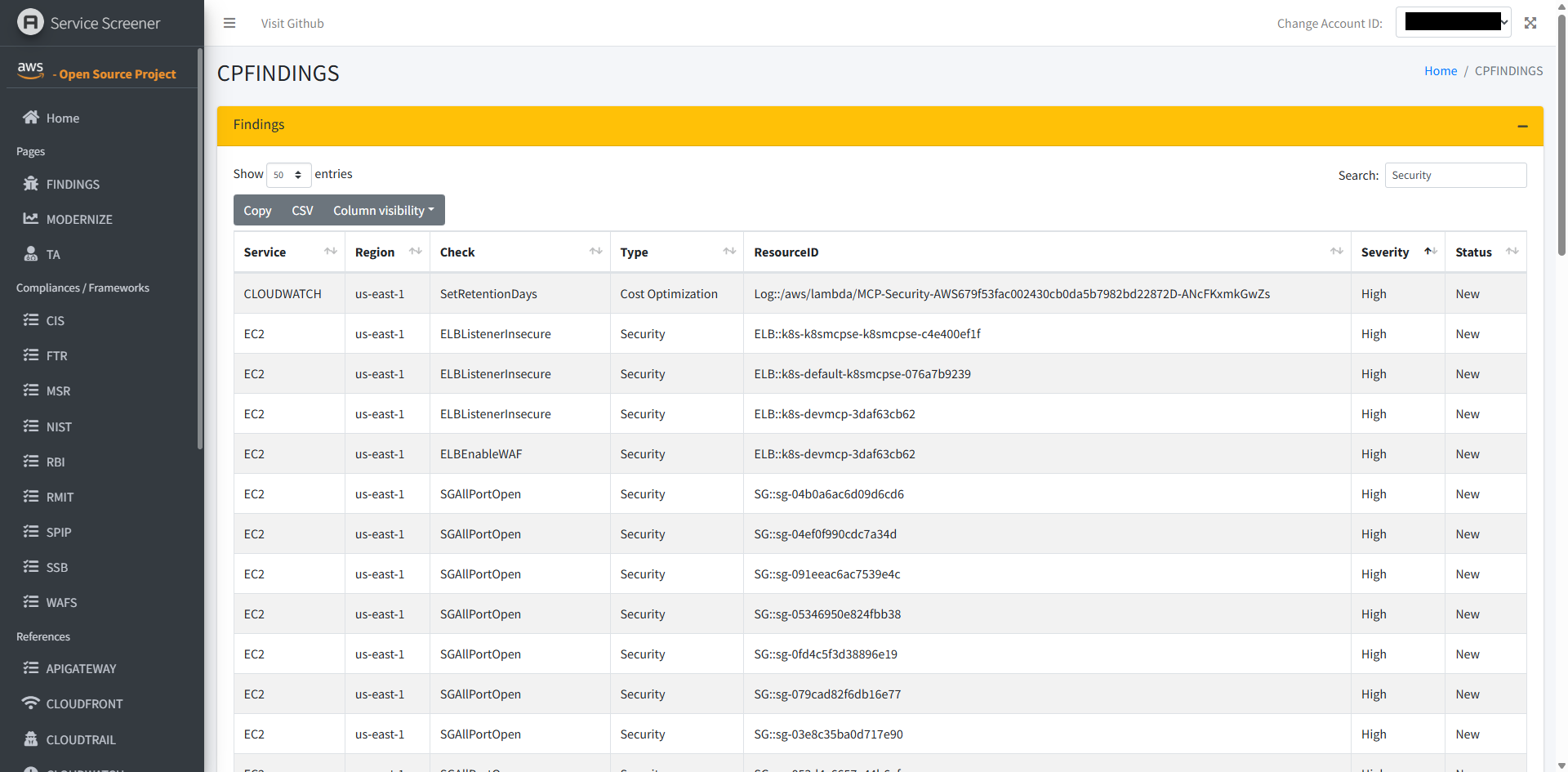
The report includes:
Left Navigation Panel:
- Dashboard overview
- Service-specific sections
- Summary statistics
Main Content Area:
- Detailed findings
- Resource-specific recommendations
- Severity indicators
Key Sections:
- Critical: Issues requiring immediate attention
- High: Important recommendations
- Medium: Optimization opportunities
- Low: Minor improvements
5.3. Understanding Finding Categories
- Unencrypted resources
- Overly permissive policies
- Missing security configurations
- Compliance violations
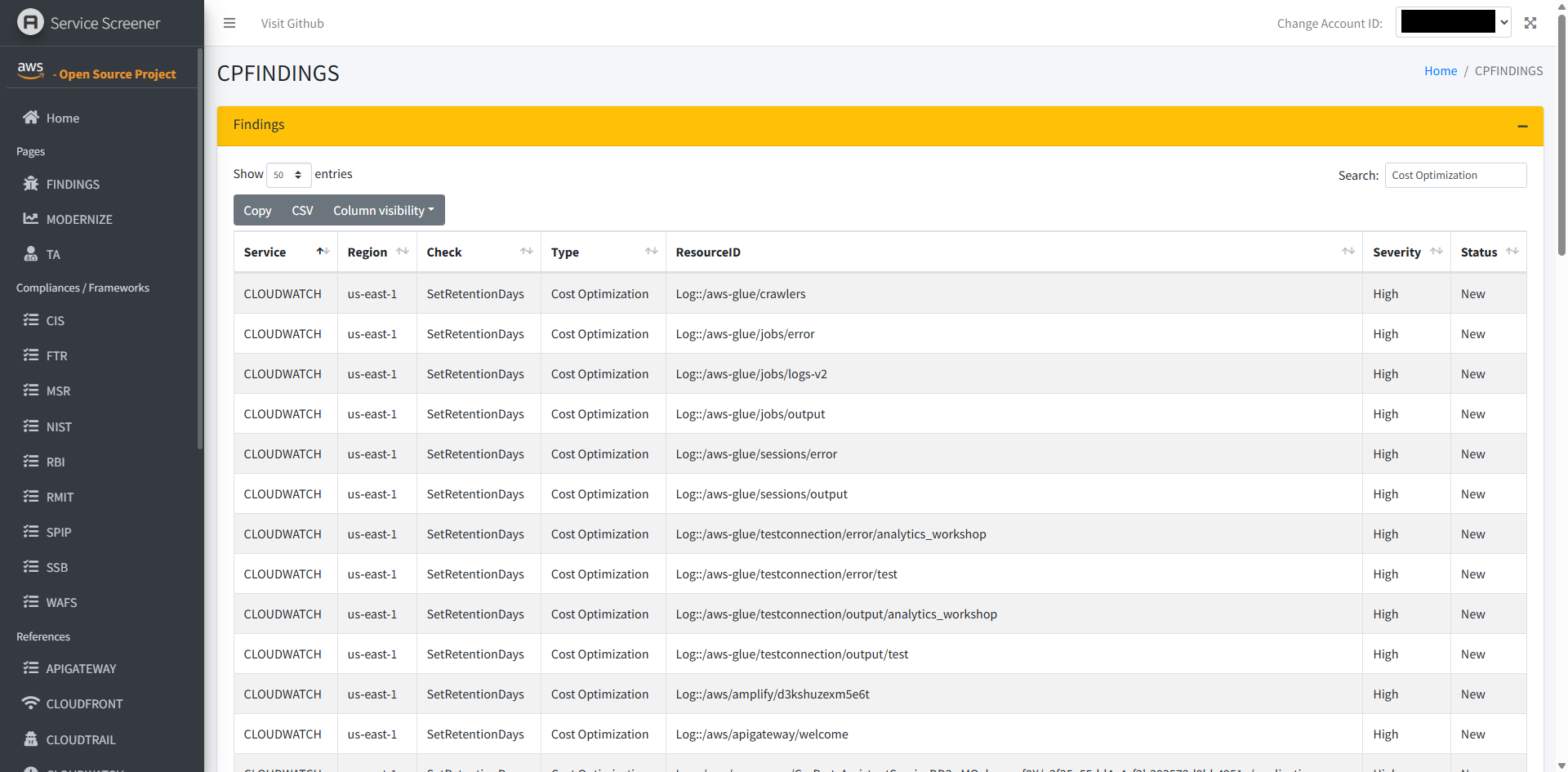
- Underutilized resources
- Oversized instances
- Unused resources
- Storage optimization opportunities
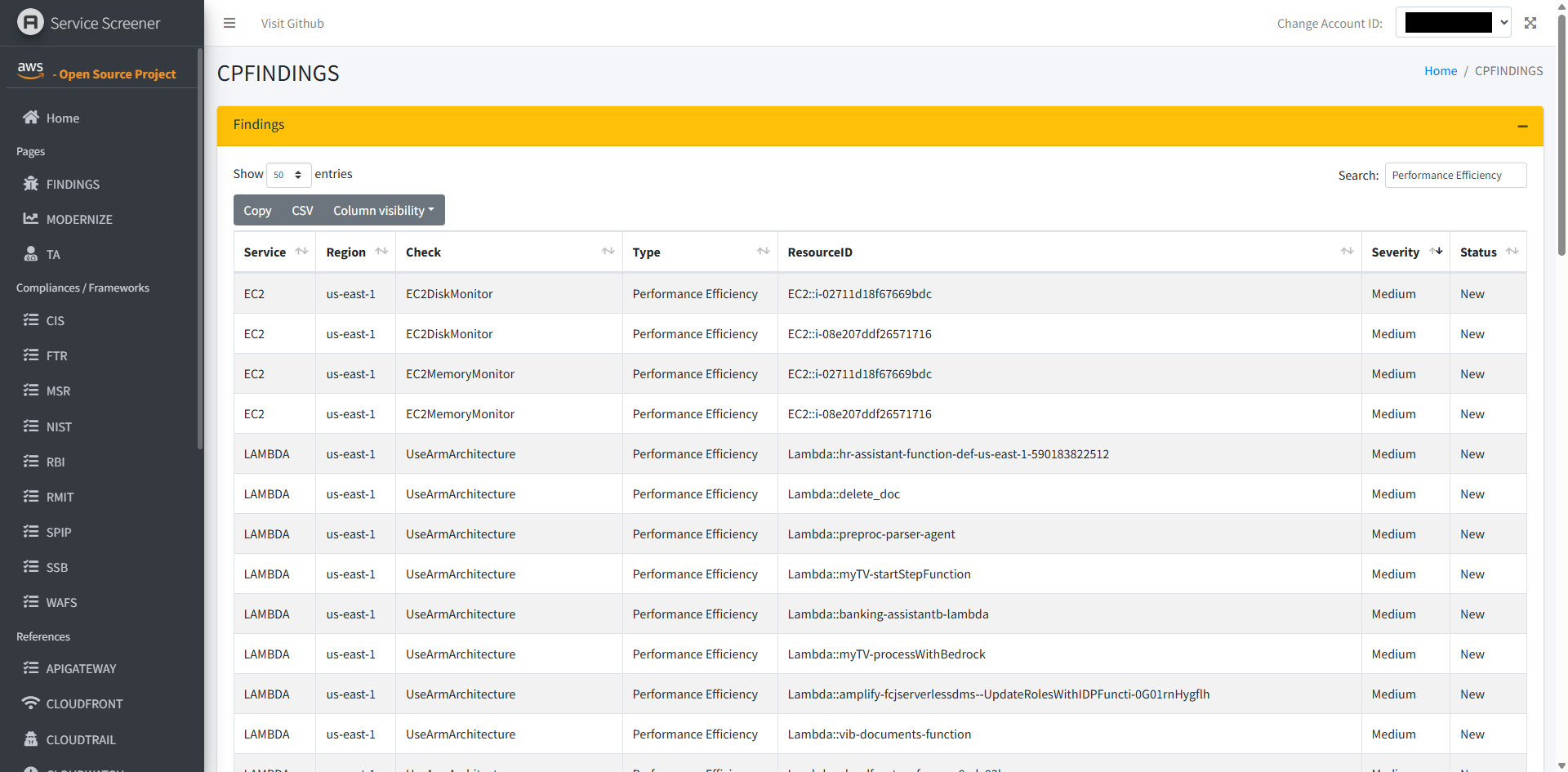
- Suboptimal configurations
- Missing monitoring
- Inefficient resource allocation
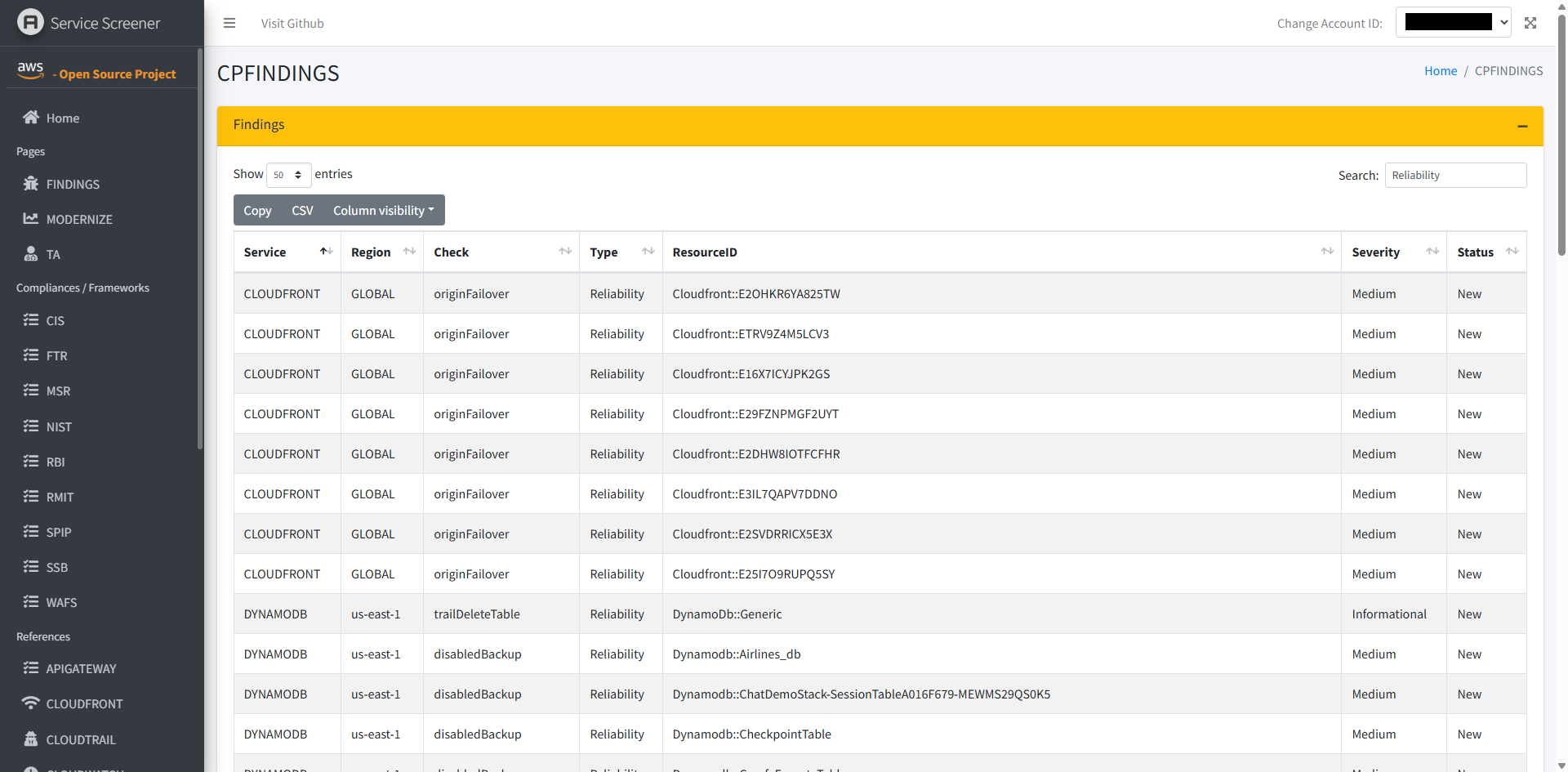
- Single points of failure
- Missing backups
- Inadequate disaster recovery
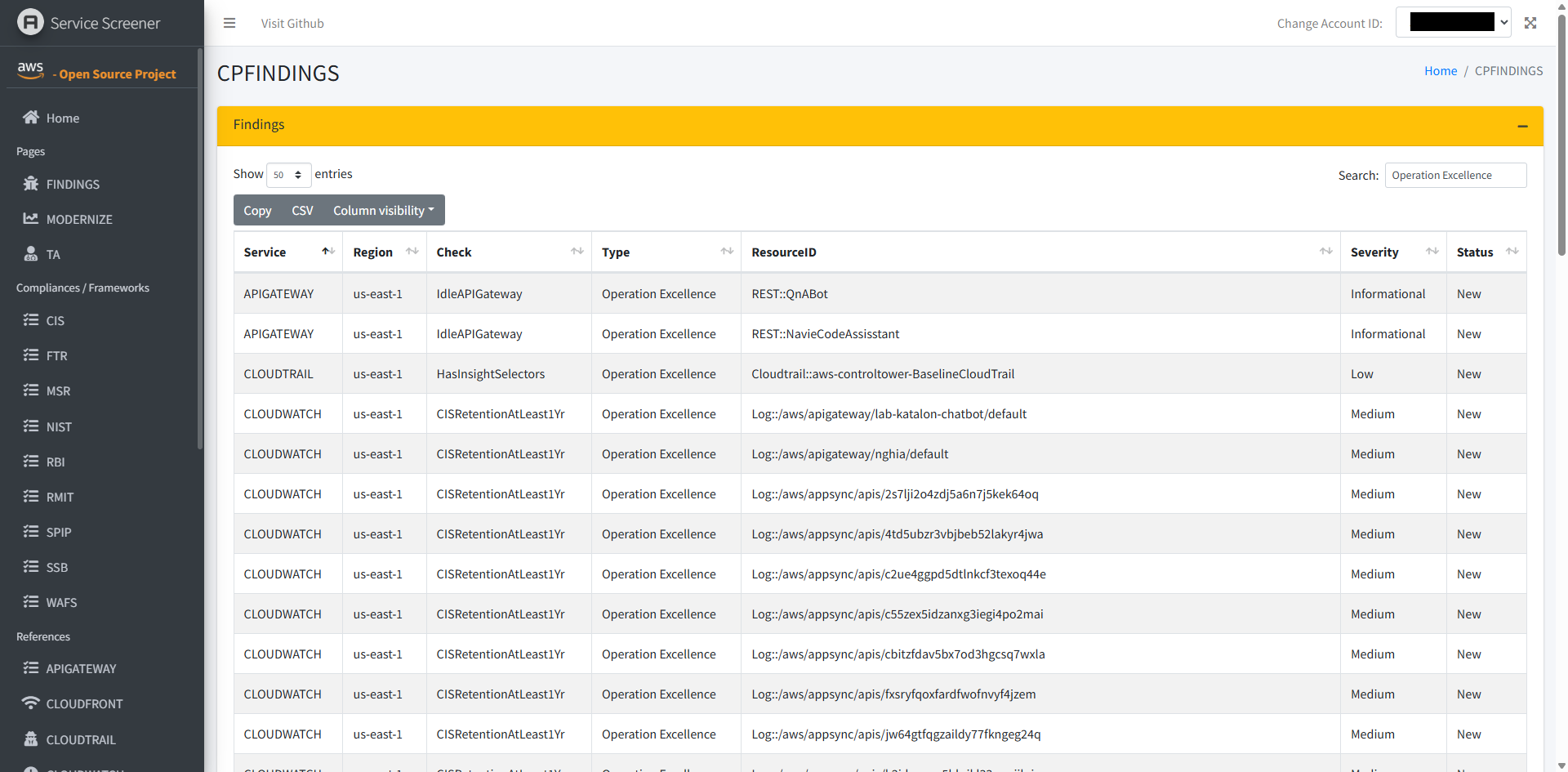
- Missing automation
- Inadequate monitoring
- Configuration drift
5.4. Prioritizing Recommendations
Use this framework to prioritize findings:
- Critical Security Issues (Fix immediately)
- High-Impact Cost Savings (Quick wins)
- Reliability Improvements (Prevent outages)
- Performance Optimizations (User experience)
- Operational Improvements (Long-term efficiency)